Enmeshed in a "blue network&quot

The subject of this research - opportunities for the organization of personal wireless Bluetooth-based network computer with an adapter Bluetooth USB - Billionton USBBTC1A. In this article we will test the connection to a PC with mobile phones and handheld computers using a wireless connection. Of course, all mobile devices that participate in the experience, support Bluetooth. To get started all a bit will tell you about the virtues of personal Bluetooth-networks in relation to our little experiment in which, again, involved a desktop computer, mobile phone and Pocket PC, networked with "golubozubogo" USB adapter. So, combining the desktop to the cellular handset wirelessly, you can afford a lot - to throw the contacts stored in the mobile phone on the big PC or even, for example, popolzovavshis "ICQ" to work where you are in addition connected to the LAN desktop, there is a stern administrator , the ban on all kinds of internet pagers. In the latter case will the following scheme. Authorized service continues to use over a network connection, and configure ICQ to work through their cell phones. In addition, the use of Bluetooth-bundles "PC + mobile phone" is obvious if we do not have my phone jack and modem.
Enmeshed in a "blue network&quot
As for the unification of Bluetooth-channel handheld computer and its desktop counterpart, here again the mass of applications - from wireless synchronization of data stored on PDAs to surf the Internet or LAN through a big computer. However, in the latter case, you are somewhat limited area of ​​Bluetooth - the order of 10 meters, but still nice. Now, Own, about the main thing being tested - USB adapter for a large computer.
Enmeshed in a "blue network&quot
    Here are its features:
  • Class 1 - the radius of 100 m (applies to that radius only if the reply device supports such a distance). Class 2 - 10 m
    Specifications:
  • Bluetooth v1.1
  • USB 1.1 port
  • Compatibility - Windows 98/2000/ME/XP.
Detailed list of parameters Bluetooth USB adapter, you'll find in this plate.
Enmeshed in a "blue network&quot
Included with this device comes with software CD, installation guide, extension at 50 cm USB / USB. Begin, as well as advising management, with the installation of the software (driver and application software) from the disk. Prior to the installation software did not connect the adapter is better, though do not worry if it is connected in advance, will not happen. The system itself will search the USB drivers, and only need to abandon its proposal. So, install software. There are no deviations from the standard process.
Enmeshed in a "blue network&quot
After the download is complete on the computer, the following changes. At the bottom of the toolbar icon appears in Bluetooth. This icon will be red until the adapter is connected and becomes green when we finally connected to the USB port.
Enmeshed in a "blue network&quot
On the desktop, as well as in the "My Computer" icon appears My Bluetooth Places, which should push to open the main setup menu.
Enmeshed in a "blue network&quot
We begin to configure the device by clicking the icon Bluetooth Setup Wizard.
Enmeshed in a "blue network&quot
The main thing - to choose and configure the options that we need in the future. On the order of each of them: - PIM Item Transfer / PIM Synchronization
Enmeshed in a "blue network&quot
Responsible for file transfer and synchronization of personal database (for example, Microsoft Outlook) c of such a base and a business card and other devices. It is not clear yet, it is useful to us or not, because when working with the Pocket PC for these purposes will be used by specialized application (ActiveSync for Pocket PC). However, in our experience will participate and a mobile phone, so put a check and set up to synchronize with Microsoft Outlook. - File Transfer
Enmeshed in a "blue network&quot
Sharing files between devices. This option makes sense to connect and define the folder where you will be sharing files. - Network Access
Enmeshed in a "blue network&quot
Access to the network will allow access to network resources of a computer (eg Internet access) to mobile devices via Bluetooth-connection. Since our big computer is connected to a network, you may be able to somehow use this resource. Pocemu assign configuration settings - Allow access to the internet through this computer ". - Dial-up Networking
Enmeshed in a "blue network&quot
Ability to set a bunch of: a mobile device - "a big computer (via Bluetooth-connection) -> Internet (via a modem connected to a large computer). Since we do not have a modem, then test this original way, we will not.- Bluetooth Serial Port
Enmeshed in a "blue network&quot
But this possibility, we need one. It is through this virtual port will be an interaction Pocket PC via ActiveSync c big computer. When configuring the system suggests us to use the port COM7 (on other machines can be offered to other ports depending on which of them are free). - Audio Gateway possibility of using Bluetooth-headphones. Headphones have not yet, but the plug and this feature - a sudden end of the study that will change for the better:) - Headset And this facility allows you to use a microphone and speaker of the computer instead of the relevant attributes of a mobile phone or any other device, which we try to connect. In other words, the computer becomes a big earphones. Connect and this chip. From the unencumbered leaves us with only the "Fax", which certainly will not activate. Now we are ready to open the Bluetooth-Ups between different devices.

Experience first, or the connection of a large computer with a mobile phone

We have a little outdated but reliable tube Ericsson T68. First of all, maximally briefly about how to enable Bluetooth in the mobile phone. In the "Connections" (Sonnect), in line Bluetooth, select the Operation Mode and translate mode to ON. Then on the desktop in a row Discoverable includes options to find a mobile phone. This mode runs for 3 minutes, so you immediately start the procedure by using the menu Find Bluetooth Devices.
Enmeshed in a "blue network&quot
Our T68 remarkably quickly discovered a big brother, so that count - half the job done.
Enmeshed in a "blue network&quot
Now it is necessary to conduct the process of "pairing" (pairing) devices, that is, give them the opportunity to get to know each other, share passwords. Dating procedure is performed only once, so that in future the device when trying to connect immediately "recognize" each other and start working together without formality. (Note: you can set up communication so that each time a connection between the devices will be prompted for a password). Right click on the icon in your phone and select Pair Device.
Enmeshed in a "blue network&quot
The pairing process went. On the computer screen in the bottom menu appears Bluetooth PIN Code Required. Introduce an arbitrary number and a similar message is already on the small screen phone. Introduce the same number and familiarity completed.
Enmeshed in a "blue network&quot
Phone icon on the top left there is a check mark, indicating that the pairing process was successful and can be ready for the next experiments.
Enmeshed in a "blue network&quot
Go ahead. Click on the icon of the phone and go to the following menu:
Enmeshed in a "blue network&quot
There is a set of icons, but we are interested only connection Dial-up Networking. Click on the Dial-up Networking:
Enmeshed in a "blue network&quot
On your computer, there is a window "Connect to Bluetooth Connection». Here you need to type a user name and password, depending on whether, to what cell phone is connected to the operator.
Enmeshed in a "blue network&quot
... And now the connection is established. Here you need to make a brief remark. We assume that our phone is connected to the network GPRS. Information on how you can do it you will find on the sites or carriers to HPCru. In our case - in rows "User" and "Password" enter the mts, in the row "Type" - * 99 #. The latter depends on phone model - see the relevant information about your phone on the operator's website. The speed of connection in the GPRS may be different, in our case, it reached 115 Kbit / c, which is quite decent.
Enmeshed in a "blue network&quot
As you can see, the icon has a green phone. This means a working connection. That's all for this step. You can now use cell phone as a modem and to check out the Internet. On the big computer in the Internet Explorer settings, select "Tools" -> "Internet Options" -> "Connect". Click on "The compound via Bluetooth".
Enmeshed in a "blue network&quot
In the second test Let us install a Bluetooth connection between a large computer and handheld Pocket PC.

Experience of the second, or the connection of a large computer with a pocket

In general, everything as well as a mobile phone. First of all, activate a Bluetooth mode on Pocket PC. If you have a HP iPAQ, then all is simple. Turn radiorezhim, start the Bluetooth Manager and launch the "Search" (Search). Choose the device to synchronize and be sure to put a tick in the box ActiveSync Partner. And that's all. Cparivat device, of course, is not required.
Enmeshed in a "blue network&quot
At this stop, we will leave until the iPAQ alone and look so simple it's all done on other devices. It turned out that when working with the Pocket PC without a built-in Bluetooth (where as radioadaptera uses CompactFlash card or SD), the situation is different. We experimented with promyshlennnym pickpocket Symbol PDT 8000 and card Anycom Bluetooth CompactFlash Card. So this bunch steadfastly resisted all attempts to establish a connection (by the way, in this case do not dispense with the procedure of pairing) and earned only after a few reboots of both machines. Below are screenshots mikrokommentariyami showing the sequence of connection in this case 1. Initiating a connection c screen PocketPC
Enmeshed in a "blue network&quot
2. Found a Symbol 8000 c Anycom Bluetooth. T68 handset is in the pocket. Pay no attention to nowhere invading notebook LAWGROUP (in our office do not exist, apparently the owner in an adjacent room).
Enmeshed in a "blue network&quot
3. The process of mating, the authorization is required.
Enmeshed in a "blue network&quot
4. Enter the password (and then the same on Pocket PC)
Enmeshed in a "blue network&quot
5. All right, the icon appeared checked, you can now connect.
Enmeshed in a "blue network&quot
Now the iPAQ, Symbol, and are ready to further hostilities, which are the same for both devices. We continued to experiment with Symbol, so the icons on the following screenshots will simbolovskimi. So, what to do next? Next you need to prepare ActiveSync on both machines. Since our earlier work with Pocket PC AstiveSync through the physical port (serial or USB), but now we need to change the port because the Bluetooth connection uses in its work to a virtual port. How do you know what this port? Port we have automatically established at the very beginning of the article, when we installed the drivers for the adapter. Go to My Bluetooth Places -> My Device -> and see the following picture:
Enmeshed in a "blue network&quot
Remember the port that corresponds to the line My Bluetooth Serial Port - we have it COM7 (not necessarily that you will have the same description of the potential problems of looking at the end of the article).On the desktop computer run ActiveSync -> File -> Connection Settings and select the port COM7 (he must be on the list of ports, but there may be exceptions, again - about this at the end of the article). If the iPAQ on this for almost everything, then Symbol still need to configure ActiveSync on the device itself. Why in the start menu, click ActiveSync, and select the appropriate port (in my case BTActiveSync (COM6), do not be alarmed that the port is different from the port on a desktop computer, it's as different machines).
Enmeshed in a "blue network&quot
And now, after all the ordeals in the Start menu, click on the BT ActiveSync and install ActiveSync ... coedinenie! Now you can enjoy all the benefits provided by ActiveSync (email, other opportunities Outlook, transfer files, etc.) at a distance of 10-15 meters because of a computer.
Enmeshed in a "blue network&quot
And now, as promised, a few words about the problems that, despite all the carefully and consistently carried out the procedure may still occur. Sometimes (and not so rare) that the compound, despite the fact that everything was done correctly, still does not want to install. Bluetooth developers in such cases has been criticized generally for Microsoft ActiveSync (quote: "it happens that ActiveSync for some unknown reasons, switched to a strange situation in which some unknown reason the connection is impossible"). Microsoft has a different point of view on these issues, because we all know that Bluetooth is yet still somewhat damp (more on this issue can be found at www.cewindows.net). But what if we do get into this situation?
    The first tips are:
  1. restart both computers. If not helped, then Look at the following paragraph.
  2. reconfigure all the ports back in and carry out the procedure ActiveSync ordinary physical means. Then again to reconfigure the ports under the Bluetooth. And if it did not help, then www.cewindows.net described a problem that, who knows, may prevent you, too. About it - just below.
There are situations when your computer employs a large number of virtual ports for all different peripherals. So, when you install the drivers for the Bluetooth adapter, the program selects the first free port, and if you are busy all the ports to COM9, respec-tively it configures itself by COM10. No error messages or some program does not give warnings (yes, because any mistakes and was not). And the problem is that ActiveSync (in any case before version 3.5) does not support ports over COM9. In order for this fix, you must uninstall the program, kill all unnecessary ports and re-installlirovat software to produce the desired port. We hope that this little manual will serve as a model for organizing personal "golubozuboy" network. Good luck to you and comfortable existence within it of:) The authors, translation:

Computer in the ear

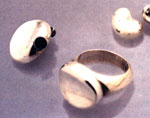
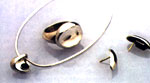
At the mention of wearable computers in our imagination arise device on the strap, worn on the arm, battery, tacked on to his belt and placed in glasses displays. An integral part of these kits are cords that make a person look like a walking network. So look the computers that we carry. However, in the future, perhaps there will be other - built in what we wear. Researchers from IBM's labs have started creating device projects, whether in the jewelry worn by us daily.
Computer in the ear
Expected to create a wireless personal area network (PAN), comprising a device that will let into watches, bracelets, earrings, necklaces, rings and other jewelry worn on different parts of the body. Imagine the speakers, set in earrings and a microphone hidden in the fob attached to the ring. Actually the computer and the display will be built in all wrist watch or a bracelet. Blocks will be linked with technology similar to Bluetooth, through the tiny low-power high-frequency devices. Communicate through this network will be possible only within a radius of not more than 1 - 2 meters. If the current Pocket PCs are designed primarily to assist a person in work and business, then the wearable devices of the future is assumed different purpose: they will focus primarily on user privacy. Of course, receiving a reminder of the upcoming meeting, or receive a message from a business partner by e-mail - it important. Everyone wants to also keep in order your calendar and address book. However, this is not the services a computer in which a person needs in daily life. Applied systems oriented to privacy, will perform tasks such as voice communication, obtaining information on the whereabouts of the user, as well as provide entertainment.
Computer in the ear
According to technical director of IBM's Michael Karasik, built-in jewelry worn device, most likely will not need the Start button, and, possibly, in the display. Supporting infrastructure, providing job application systems will only need to activate the device permanently in standby. Let's look at some examples of wearable computers in everyday life. The family spends a vacation at the resort. With a device installed at each of the bracelet, watch fob, or parents will be able to determine where their children, and even tell them where to meet for breakfast, lunch or dinner. Or another example: when you play golf wearable computer calculates and displays the distance from the ball to the hole. He may even be able to indicate playing, what a club it is best to take, given the strength of its impact and possible obstacles.
Computer in the ear
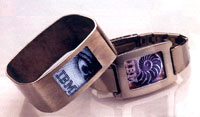
Both these situations are among those where the user is not very willing to receive any alert signals or read the messages that came from the staff via email. It is extremely important in everyday life the scope of mobile devices is to determine the location. Imagine that while traveling, you are using a wearable computer figure out where the nearest restaurant that serves your favorite dishes. Perform such a task can and PDAs, but more effective would be an automatic transfer of information through a device incorporated in the decoration: it ensures that person is free from having to remove the PDA from a pocket or handbag.Handheld devices can also be used to provide various services in the business when to use a cell phone, pager or PDA inconvenient. In such situations, flicker your rings and a short buzzer can serve as a signal that tells them to answer the phone or get an email. A quick glance at the display, a built-in clock or a bracelet - that's all you'll need to get the warning. If you're in this business meeting, nothing will disturb and will not irritate sitting next to you people. Here it would be appropriate to ask, Is it even possible embedded portable device? I must say that even now there are some parts needed to create them, such as mini-chips for global positioning system GPS, as well as the small batteries used in microphones. Among the organic components of display (OLED) can be cheap to create screens that require no backlighting and high energy costs. At the IBM Watson Research has already been demonstrated computer on Linux, installed in a wristwatch.
Computer in the ear
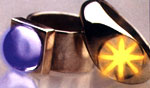
When you create a jewelry set with embedded computers will be taken into account the need to use multiple batteries. Consume additional energy, coming out of standby mode, will not all but only those devices that are needed at the moment for a specific application task. IBM has built into the ring device working on the technology Trackpoint, and now the menu on the display (presumably it will be installed in a watch, bracelet or glasses) can be deployed either optical or a few clicks. Built-in sunglasses displays, through which the user can, for example, view news headlines, will probably part sets autonomous wearable devices. LCD screen with a diagonal of just 0.3 inches can be used for projection on the inner surface of the lens. In the future, can be installed in glasses and a device manufacturing and forming an image that will allow the user of portable computer to recognize and distinguish the surrounding objects and people. In small blocks of wearable computers of new generation will be "sewn up" the mass of different technological innovations. Maybe, especially for embedded devices in the jewelry will be developed operating system WRIST (Wearable Real-time Information System Technology or technology information systems for real-time portable devices). However, as the scholar said of the company's Almaden Research Center IBM Cameron Miner, "an even greater extent than the technology, the direction of the work on wearable computers will determine the mode." Sources, Materials:

PDA Buyer's Guide, April 2005

In this article you'll find brief overviews of most PDAs and smartphones, presented at this time on Russian PDA market. For convenience, we divide the entire range of the following groups: the initial price level (see below), the average price level, hi-end and communicators (the phone is handheld). Meet, compare, choose. This material is updated monthly as new models of handheld computers, leaving the market obsolete and change the indicative prices. For ease of navigation through catalog images of some handhelds are equipped with special badges: Hit the month "," Super-Price "," Soon on the shelves! " and "on sale now, which we hope will help you sort out the variety of the world's handheld ...

The initial price level

It is paradoxical but true: In this section the most inexpensive and yet the most recent advances PDA-thought. The fact is that until very recently, handheld computers with these characteristics were not available to most of us because of the price dictated by the young market, and just because it did not exist. But over the past year of a miniature computer industry structure has made such a leap forward that the most distrustful left any doubt. "They know how" these devices are now smaller than desktop computers the mid 90-x (200-300 MHz processors), and cost (the most expensive model in the class) a little over $ 300. PDAs initial price level (or "low") are perfect for you if you first decided to purchase such a device. Firstly, they are - just a copy of their more expensive "brothers" - with only a little stripped-down processing power and functionality. Second, available to almost everyone. With their help, you will have the opportunity to meet with one or another handheld operating system, choose the most suitable, as well as a skill with a small computer. In addition, this handheld is always appropriate to give a friend or girlfriend, if he or she is certainly not zapravskie PDA users. Although, sure, and the last will be glad surprise: after all, a PDA is good, but two - better.

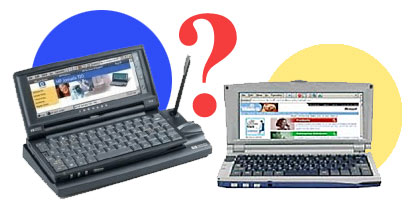
Asus AH100 or the Jornada 720?

Asus AH100 or the Jornada 720?
Presented at the exhibition CeBIT, held in Hannover, Germany from 22.03.2001 to 03.28.2001, the new HPC-based device operating system WinCE 3.0 (H / PC 2000) - ASUS AH100, caused some interest in the Internet and attracted my attention. A well-known Taiwanese company, a manufacturer of good motherboards, video cards, CD-ROM, of satisfactory quality notebooks, etc reached a new market and positioning your product as competition Jornada 720, an active user who I am. After a long search for information about ASUS AH100 in the network, I found the site a detailed description of ASUS, which made a big impression on me. Can not help but bring it fully, though, dropping some general praise retreat.
Model AH100
Processor Intel StrongARM SA-1110n 206MHz 32 bits 103MHz Host Bus
Operating System Microsoft Windows CE 3.0
Memory 16MB Flash ROM PC100 32MB SDRAM
Screen 6.4 "STN, 640 x 240, 256 colors, CCFL backlight, High contras
Slot CompactFlash Type II
IrDA port IrDA 1.1 compatible, SIR-115.2Kbps
Modem H / W modem 56K/19200 V.90 data / fax / voice
Interface RS-232C Seq. port, headphone jack, microphone jack, built-in RJ11 USB port (Type A), Antenna connect
Food Li-Ion Battery 3600mAh, up to 9.5 hours (14 days of standby standby), charging time: 3 hours / 2 hours (or in the on and off sosotoyanih), power supply: 5V DC, 2.5A, 10W; 100 ~ 240V AC , 50-60Hz
Dimensions 188 x 90 x 28 mm
Weight 380 g (with batteries)
Input Keyboard, Touch-type keys, built-in keypad for dialing numbers
Audio Built-in speaker and microphone
Dop.modul CDMA module
Dop.displ. Monochrome LCD display on the cover 16x64
Impressive! Do not you think? Particular respect is the bus speed (two times faster than the Jornada 720) and built-CDMA. Noting also the Flash ROM. And now, thanks to the draft revision HPC.ru, I managed to get to test himself PDA. After admiring it awhile, I rolled up my sleeves and begin testing. (All the options will be further evaluated on a ten-system.)

Appearance.

Asus AH100 or the Jornada 720?
Strict, silver machine, reminded me of the old "Cassiopeia", but a new version. Additional indicator on the top cover looks absurd and has no additional information beyond the time display. The handle for opening the rather large, although its function is performed properly. The very lid opens easily, almost too easy. If your computer is to turn and shake, then the screen will open. I Jornada 720 spring opening screen powerful and spontaneous opening is not happening. Pen quite uncomfortable, although it should be noted that fixed it denser than the Jornada 720. Hull lines are smoothed and produce a favorable impression. Kreedl supplied with the ASUS AH100 is not attached, so the estimate of its elegance and comfort was not possible. Total for the look: ASUS AH100 - 6 points, Jornada 720 - 8 points.

Location of connectors and controls.

Asus AH100 or the Jornada 720?
The front panel control buttons made multimedia device and a headphone jack.I Jornada 720 headphone jack is located on the left side of the hull, which, in my opinion, it is more convenient. Connector built-in modem, is located in the upper left corner of the base and opens up. Work on the keyboard with the inserted modem cable is difficult, because it hinders the movement of hands. I Jornada 720 modem jack is located in the right corner of the grounds on the side and open back. Cord is inserted into the modem, do not interfere with work. CompactFlash slot is located on the left side of the device, which is much more convenient than the Jornada 720. (Located on bottom of case). The reset button is located below the device. I Jornada 720 - next to the keyboard, which is more convenient. In the ASUS AH100 a button screen-saver. In the Jornada 720 No more. Power button is related to additional functionality and, therefore, to enable ASUS AH100 need to press two buttons. Total Section Connector and controls AH100 and the Jornada 720, respectively, to get 8 points.

Keyboard.

Asus AH100 or the Jornada 720?
In both units, fully functional keyboard, there are application buttons and the arrow keys. Response time of keys on both devices is practically the same, but the Jornada 720 keyboard is softer. Conveniently located control buttons display modes (brightness, contrast). I personally liked the keyboard AH100 more. Total for keyboard ASUS AH100 - 9 points, Jornada 720 - 8 points.

Screen.

Asus AH100 or the Jornada 720?
Screen with ASUS AH100 bright and clear, but it displays only 256 colors, in contrast to the Jornada 720, which shows 64,000 colors. The sensitivity of the screen to push for AN100 leaves much to be desired. Response time by pressing a stylus is 0.36 seconds. (Jornada 720 - 0.23 seconds). AN100 operating experience has shown that failure to double-click is 20%, and swipe at the press of 25% of the total number of clicks. I Jornada 720, respectively 11% and 14%. Total for Screen ASUS AH100 - 5 points, Jornada 720 - 8 points.

Embedded software.

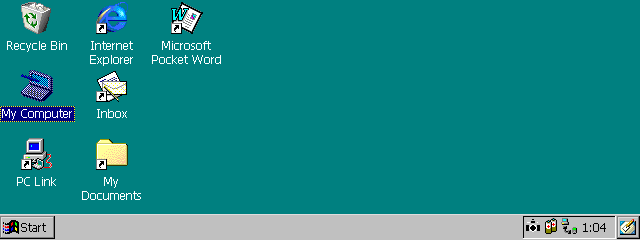
Frankly, ASUS AH100 disappointed. Of all the standard set contains only Pocket Word, Internet Explorer and Inbox. Propose a number of screen shots.
Asus AH100 or the Jornada 720?
Screenshot of the desktop screen ASUS AH100.
Asus AH100 or the Jornada 720?
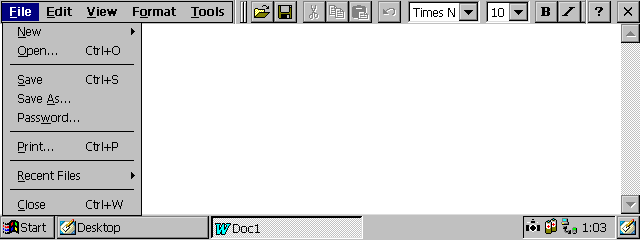
Screen, open Pocket Word.
Built-in application Pocket Word - absolutely standard for this type of device. It is possible to print typed text, its transmission from the IR port, set the password to the file, save and open the file. The text can produce simple steps: select, change the font, cut and copy, paste the clipboard and copy from it to carry out a grammatical analysis. In this version of Pocket Word can be inserted in the text of the image from the clipboard.
Asus AH100 or the Jornada 720?
Standard e-mail application Inbox.
Appendix Inbox (work with mail messages) is identical to the application Inbox PDA Jornada 720.It is possible to send and receive mail as to local connection, or via the Internet. Supported IMAP. E-mail messages can contain attachments of any type, but will only open attachments format Pocket Word. In addition, the application Inbox, you can add services.
Asus AH100 or the Jornada 720?
Screenshot of Input Panel application
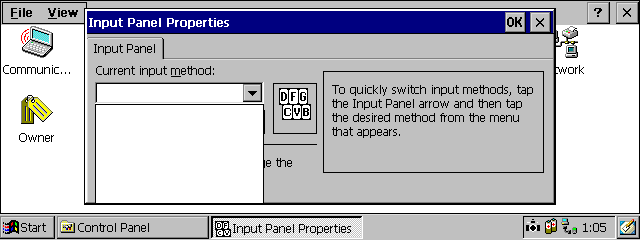
As a novelty - the application called Input Panel. (To quickly switch between input methods, from the menu that appears, select the desired input method). To my deep regret the drop down menu does not contain any information, so to change the input method I could not. In contrast to the Jornada 720 in AN100 missing and Pocket Excel, and all other components of a standard office. (Later I found information that Microsoft refused to license the company ASUS on WinCE).
Asus AH100 or the Jornada 720?
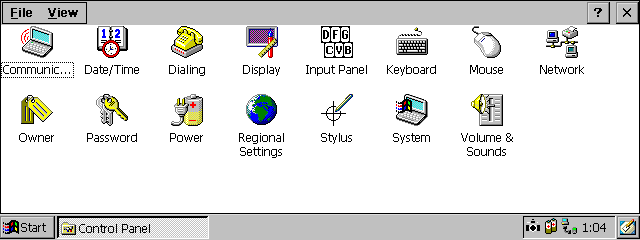
Screenshot of Control Panel applications
As can be seen on the pictures, the screen further action with the above program does not lead to any results. Now consider the remote network access. As seen from the screenshot in ASUS AH100 is possible to configure a set of parameters of the device, though it should be noted that surprised me was the inability to remove installed programs.
Asus AH100 or the Jornada 720?
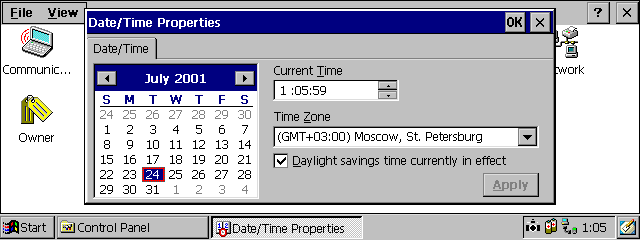
Screenshot of the application date and time settings
Setting the date and time AN100 completely identical Jornada 720. Takes into account daylight savings time. Of greatest interest, in my opinion, pose the possibility of AN100 for remote network access.
Asus AH100 or the Jornada 720?
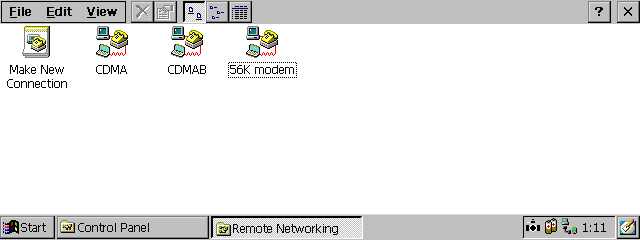
Screenshot of Dial-Up Networking
As can be seen on the pictures, except the internal modem, ASUS AH100 proposes to use two types of CDMA connection using its own integrated module. I tried to use the CDMA connection and get acceptable results. (The module was tested in the laboratory). Built-in modem will connect at a speed of 50 kb / s protocol V90. You do not encounter problems inherent in modem Jornada 720 - loss of carrier. In AN100 built-in support network cards, but unlike the Jornada 720 is supported by a smaller number of cards. PC-Link application allows you to connect to a desktop computer via serial and IR ports. Select the speed of the serial communications is limited to two speeds. Infrared AN100 faster than the port Jornada 720 and a connection to it is instant. Application Internet Explorer has support for gif-files, but does not support Java Script. In the Jornada 720 is built VM machine in order to maintain Script. Total Section "Embedded Software" ASUS AH gets 5 points, Jornada 720 - 8 points.

The hardware part.

AN100 has no slots PCMCI card (minus point), in contrast to the Jornada 720 and has an additional module of CDMA (plus point). USB port at ASUS AH100 full (plus 1 point). The infrared port is faster (plus 1 point). Flash Rom (plus 1 point). In the two times faster than the Jornada 720 bus (plus 1ball). I Jornada 720 has graphics accelerator, the AN100 is not (minus 1 point). Check the multimedia capabilities AN100 failed (minus 1ball). The computer has a built-in voice recorder and all (Section software compatibility). Weight EA 100 less than the weight Jornada 720 to 130 grams.(Plus one point). Total Section AN100 gets - 9 points, Jornada 720 - 6 points.

Software compatibility.

Good results were shown in the previous section are potential after starting the installation of third-party programs. First problem: ASUS AH100 categorically refuses to synchronize with your desktop computer. In principle, it is clear - there is no calendar, no contacts, etc. True, there is a post, but even she "did not want to." Leave alone synchronization, and see how to install the program. What I have been tested 100 programs under the system of H / PC 2000 and 100 programs under WinCE 3.0. The outcome is sad. Standard message during the installation of the program - not a comparable type of equipment. Through a long ordeal and battles with the registry was made to work 10 programs under the H / PC 2000 and 5 programs under WinCE 3.0. Most readily be installed and run the command line. (Something like Dos). An example of the program Tascal RegEdit look at the photos. Unfortunately, other Tascal-products-native to work for AN100 refused. Steadily working game programs like Tetris and crosswords. Start the emulator GameBoy, but after loading the ROM hangs tightly. The program allows you to capture the screen worked just fine. Unable to revive or crack, or fax program, or ... much more. Without all of this computer into a useless toy and so rightly deserves 2 points, line of compatible programs. Jornada - 9 points. To my deep regret at the network is very little information about the AN100. I managed to find some descriptions of the computer on a German site, the site in Brazil (Whew!) And several references in RuNet. At the conferences, this computer is not being discussed. Therefore, all information is limited to the original ohami-ahami and reports from CeBIT. AH100 - available (yet scheduled) for Korea and until Europe and America have not yet reached. It is possible that test I got no production version. To summarize. ASUS AH100 scored 33 points. Jornada 720 - 48 points. As can be seen Jornada ahead by a wide margin. In conclusion I want to say that compare quite tuned and smoothed computer from HP with a new device from ASUS is not quite correct. AH100 - not quite working computer. Its consumer properties are still low, but the potential is high. With a built-CDMA module an opportunity to access high-speed wireless data network and possibly even the use of AN100 as a cell phone. Fast IR port simplifies and accelerates data transfer on a laptop, a desktop computer and printer. Availability of Flash memory allows the operating system upgrade that becomes relevant in light of the new version of WinCE (4.0) Fast, cheaper than the Jornada 720 minicomputer AN100 will be good for corporate use as a remote terminal or an external data collection terminal, especially when there is sufficient software. The authors, translation:

"Camodelkin: Repair Touch Screen HP iPAQ h2210 with their hands
"Camodelkin: Repair Touch Screen HP iPAQ h2210 with their hands
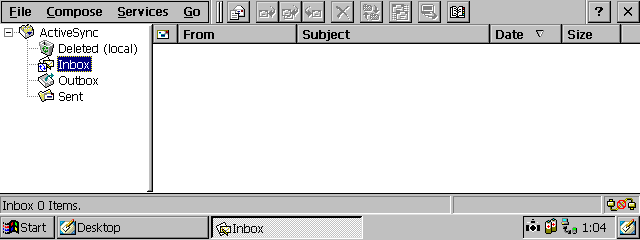
To the Editor HPCru received a letter from our reader Valeriy Kuzmin, with a proposal to publish a short article, a recommendation for self-repair screen PDA HP iPAQ h2210, lost their sensory abilities. In general, no hesitation, we decided to expand the subject headings you liked diy and share in her part of it, without doubt, an interesting experience. So now we ask you to send for "diy" not only stories about the original decisions on the basis of the CCP, but also practical advice on repairs, maintenance and other everyday realities - all of this, preferably with photos. E-mail as usual on editor@hpc.ru. And now - to the point. Anticipating a little say that repeating this experiment at home, we would recommend only to those who have seen electronic devices "inside out" and owns nizhenazvannymi tools:) Other, not self-confidence, we advise all the same to apply to service centers . Editorial HPCru not responsible for the failed experiment in self-repairing screen. I'm sure many of you know my problem - problem with the reaction of the touchscreen iPAQ h2210 clicking on the stylus. And everything started with the failures gauge display, and then began to disappear sensitivity. A little later, a long time "numb" the bottom of the screen (approximately 5-7 mm from the bottom edge), and the surviving area kolbasit as usual: it responds to a stylus, then no. About a month later I was pretty tired, so we had to take the tool and dissect his "Ike". As it turned out, it's not complicated. Dissection you will need the same tool that is used for opening mobile phone: a small Phillips screwdriver and a small hexagon (if someone does say something, then my tools were written + NO.0x30 and * T-6x30, respectively). Buy such kits can usually be in the shops that sell cell phones. So, free up space on the dismantling of any metal objects. Prepare a small container for storing and bolt shurupchikov. In addition, you will need an eraser stationery and office tape. Proceed. First and foremost, do a full backup of "aiki". I have done this operation with the built-in ActiveSync. Our goal is to touch the screen. Carefully separate the sides (if someone still have:). Under the sidewalls have two bolt, two bolt found in the bottom of the back cover. To delete them, we need the hexagon. Another four bolt find the battery compartment. Now that you have removed all bolts, note the four clips that are shot on site sides - two on each side. Using a screwdriver, you will easily be able to separate the top cover. But that's not all. The board has two screws in black, placed at the top. For their retirement will need Phillips screwdriver. But before you remove the card, you must disable the connector shield (see photo - left circle).
"Camodelkin: Repair Touch Screen HP iPAQ h2210 with their hands
To do this accurately poddevaem screwdriver brown latch and we press it upwards. It should be fairly easy to climb. We can then take the train. Again, do it very carefully. If the train does not leave when an easy effort, then pay attention to the "ears" that are at the end of it. Carefully lift them, and the trail is easy to jump out of the slot. Now look in the upper right corner of the board. There is a headphone jack, under which the hidden microphone. In order to pay off from the screen, headphone jack should "get out" of engagement with the body. With this you can easily manage.Microphone freely lies in deepening the housing and connected to the board by wires. If you can not easily pull it together with the board, you'll have to disconnect from the connector. After separating the board we will see, in fact, our goal - the screen. But with him we still need to tinker. Screen engages c-hull in six locations: two latches on each side and two hooks at the top. In addition, he secured with two screws at the bottom. First, of course, need to remove the screws with a Phillips screwdriver, then carefully remove the screen. I've done it cavalierly, but you do so I do not recommend. Simply tilt the hull sides and the screen should come very easily. By the way, can immediately clean up the contacts of the train. To do this they need to carefully rub the eraser. Typically, treatment is noticeable to the eye - contact us begin to shine like new. Flip the screen and connect it to the board. Now we need to incorporate this design. Secure on-board battery, as I did, with a thin stationery adhesive tape, which can be seen in the photo. But to our "guts" have earned, we must also bypass the lock. It is located between the battery and CF-plugs. In my case it was a small white buttons. Perhaps you have a color will be different. I clicked on it a small cube, carved from an eraser and pressed against it by using the same stationery adhesive tape, which also can be seen in the photo. Then click the button Power, which is now located in the upper left-hand side, on the back side of the board. It can easily find a finger. If you need to revitalize another button and Reset, then it is right in front of you, in the lower left side of the board. Now, most importantly, what are silent all the service centers for fear of losing customers. The whole problem (at least in three cured my machines, which operate to this day) is the loss of contact in the compound loop with a touch screen coating (see photo - right circle). To me this epiphany came upon an hour after picking in the interiors of the first "aiki". In order to make sure that in your case, it is a loss of contact, take an eraser and put it in this area. However, the need to put in such a way that he did not hide the gray bar at the bottom of the screen. Lightly press down on it and try to poke the stylus in those parts of the screen that you are numb or problematic or incorrect positioning. If that's the problem described, this should make perfect. Now proceed to the Responsible of the operation. With a very sharp knife and you have to cut a thin strip of eraser thickness of about a millimeter. It is important that you did it very smoothly. As the eraser is too broad for our purposes, you need to reduce the width of the strip to about four millimeters. The length of the pick up yourself and place the eraser as shown in the second photo (the location of the pressure pads pointed white arrow). In order to permit assembly eraser not slipped from its place, it must be something to fix. It is better to make some dolgosohnuschim glue. Dolgosohnuschim so that if the assembly does not fully recover the screen, eraser could move to a more suitable place. When assembling do not forget, please, about the microphone, if you disable it from the connector, and also about the numerous pieces of tape if you used it for fixing the battery and lock bypass. In addition, the variant, when disassembly would lead to "hard-rezet, for example, because of the shrunken auxiliary battery. In this case, do not forget that, if the restoration of the backup-file ActiveSync cavalierly declares that it can not do because of a change locale, you need to simply install the Russification and only then start the recovery process. Good luck and thank you for your attention! Sources, Materials:

Become the three hundredth! or a story about a new Pocket Administrator from Casio

Deciding that the PDA market is becoming cramped and requires an infusion of new blood, engineers, Casio, without hesitation, have created a device which, while not a PDA in the truest sense of the word, however, is very like him. It is equipped with a large color screen and runs Windows CE.
Become the three hundredth! or a story about a new Pocket Administrator from Casio

First meeting

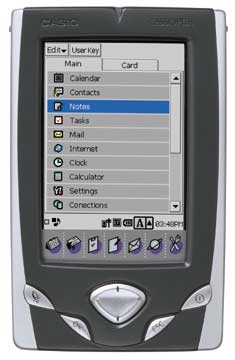
Cassiopeia Pocket Manager BE-300 - the so-called new device presented by Casio. Novelty should oust competitors in the market Pocket PCs in the price range $ 200 - $ 300. According to experts, the Casio is a good chance at it. The device on which testing, was already fully completed the architecture and the beta software. (Incidentally, the very reason that the device is aimed largely to competition from handheld Palm, it has earned the nickname - Palm-Killer:) Pocket Manager or Pocket Administrator, as you wish, is a general sense, a hybrid. This palm-size device is aimed primarily at business users. The device runs Windows CE 3.0, but does not have the usual for the Pocket PC interface and set of applications. Instead, the Casio is making its own software, developed jointly with the developers of Windows CE, bSquare, Pumatech, Internet Solutions and others. More software is discussed below. The main goal of development was to create a device with a price not exceeding $ 300. For this reason, hardware Cassiopeia has a number of features compared with the standard device Pocket PC. In addition, the built-in software package does not seem quite complete and functionally complete, although experts Casio have made great efforts to create a convenient and simple to use application. And yet, to support all users of Cassiopeia, Casio has launched the Internet project myCasio.com, where you can take advantage of many useful free services.

The hardware part

Screen Cassiopeia BE-300 on the size of slightly less than the screens of handheld computers PPC - 75% of their area. The thickness of the device resembles Compaq iPAQ, HP Jornada and Cassiopeia EM-500, but, nevertheless, it is smaller and lighter. The upper part of the Pocket Manager is slightly thicker than the rest of the body, because it built a slot for additional storage cards, CompactFlash Type II. This slot can also be used to work with network card or Bluetooth. However, most often it is applied specifically to increase memory. "Type II" means that the slot is compatible with standard cards such as IBM "Microdrive" (1 gigabyte), or card format CompactFlash. These cards have a large enough volume so you can keep them programs, music or video. Downstairs, in the side of the device, upon closer examination you will find several connectors and ports: serial port (with support for USB), stereo headphone jack and power connector. The hardware part of Pocket Manager'a very similar to other Pocket PC Casio. Therefore, the accessories such as charger, cables to connect to the PC, an external keyboard, modem and digital camera will also work well with Cassiopeia BE-300. At the bottom of the screen in the shape of "V" are 4-th small buttons. The left button when pressed brings up a menu of programs, right - on and off the device. The other two, respectively - "OK" and "ESC". For example, you enter a new record in his notebook: click "OK", to save the details, and "ESC" - to undo and do not keep a record. At the bottom of the screen are touch-sensitive buttons (icons), when clicked, which can be run: a calendar, address book, diary, notepad, email program, Internet browser and call setup. These icons can also be reconfigured to any other program.

Working with memory

One of the strengths of the Cassiopeia BE-300 is the fact that all data, applications and operating system are stored and run directly from Flash-memory ROM. RAM is only used to process the applications.This means that if during the operation you will sit down batteries, no data is lost. This is the first great advantage of Cassiopeia. The second positive aspect of using it as a Flash ROM memory is the ability to upgrade or replace any of the built-in programs to another according to your taste. Let's say you've found the best program for viewing images, you simply erase the old program and install a new one. If you do not intend to use some applications in general, such as e-mail program, you just wash them and make room for new programs. A whole set of embedded software is supplied on the CD and you can always reinstall the deleted application from scratch. And finally, the third. The fact that your operating system is sewn in Flash-memory allows you to easily install the update for it or just flash a new OS version. Used in the "Palm-Killer'e" Flash-memory today essentially a road. To create a unit price of less than $ 300, Casio had to limit the amount of flash-memory to 16 megabytes, it is intended to store the OS, custom applications and data. With the ability to compress data, saving memory. When you turn the Pocket Manager, run applications or processing data, compressed files are transferred to system memory. Approximately 6 out of 16 MB of memory used by the OS. The remaining 10 MB is used for programs and data. All standard applications take up about 4.5 MB. If you erase any application, then you have more space.

Windows CE & Software

So, as we have repeatedly noted, Pocket Manager Casio's running embedded operating system Windows CE 3.0. This means that in most cases, developers would not be difficult to migrate applications from other Pocket PC on Pocket Manager. But unfortunately (or fortunately), another great feature of this device from the Pocket PC is a different user interface. For example, in the Pocket Manager icon is not "Start", and supports the ability to "tap-and-hold" (grab and hold:). Therefore, not all applications can run on Cassiopeia, without elaboration. Lead the development of software for Casio will BSquare, whose tasks will include providing technical support and provision of free set of tools for software development, which includes libraries, header files, help-files and documentation. In September, BSquare hosts conference for software developers.

Embedded applications

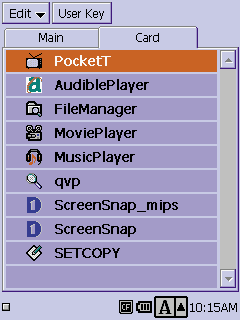
The complete embedded software test sample consisted of the following programs: Contacts (address book), Calendar (Calendar), Notes (Editor text and graphics), Tasks (daily), Mail (email client), Internet (web browser), PhotoViewer (viewer images), Clock (Clock), Calculator (Calculator), Settings (setting), Connections (a program to connect to the network) and Backup (backup software) - the main memory and an expansion card: FileManager (file manager), music players and video, as well as file viewer Word DOC, Excel XLS and PowerPoint PPT. Unlike the Pocket PC does not include the program Pocket Excel and Pocket Word. The presence of a viewer for. Doc and. Xls file says that these files can not be edited, but only view. Working with applications BE-300 is very simple and intuitive, but, unlike the Pocket PC, there seems incomplete functional completion of the entire set of software is an incomplete set of capabilities. For navigation and access to different menus Pocket Manager uses a constant set of icons. Only now the action they are slightly different from those on handheld computers RCF. Along the upper edge of the screen in different applications, you may find the following icons: the first, top left - this is "go back one screen" (go back one screen back), the icon looks like a U-shaped symbol lying on her left side. The second, located in the upper right corner and reminding them to form a tornado, - "exit application" (comments obviously do not need). Sometimes you will fall and the traditional icon - a question mark, talking about what is there to read the description, or get help. At the bottom of the screen, just above the icons to launch applications, show times and icons giving access to the slot CompactFlash.In addition, there is also and indicator of battery life, illustrating how long the battery will give you an easy to play your favorite game. There are icons that open a window for entering data and switching input methods (virtual keyboard or handwriting recognition). Start menu programs - a simple list that drops when you press the left button of the "Palm-Killer'a. Ultimately, Pocket Manager easier to use than PPC, but it is especially important in winning seats on the market of low-end devices. Particularly enjoyable moment when working with the device turned out to be software support storage cards. For example, in the menu to launch applications, and some programs have two windows: "Main" and "Card". To see what programs you are on an expansion card, all you have to do is simply switch to another window.
Become the three hundredth! or a story about a new Pocket Administrator from Casio
A positive aspect of using CompactFlash memory cards is their energy independence. You can store them on the program indefinitely. All you then have to do is insert the card with the correct program into an expansion slot - and it is immediately ready for use. You just have to go to the window, "Card", to gain access to programs that are on it.

Input

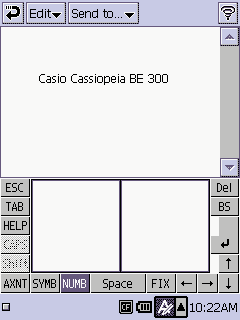
Entering characters in Pocket Manager is also carried out, as in many other Pocket PCs Pocket PC. Icon with the letter "A", located at the bottom of the screen allows you to call the text input panel. Behind her is an icon, choose the method of entry - a virtual keyboard or recognition. Along the upper edge of the keyboard are four buttons that allow you to access the character sets. There is a standard set of letters for entering text, the two sets of icons and pictograms, in addition, a set of standard symbols WEB-addresses. You particularly appreciate this last set of characters, allowing you to quickly enter: "http://," "www.," ". Com." ". Net," or ". Org". For character recognition in the device uses a very clever method. When you enter the text you enter characters one by one in the left and right window. At the time, until you enter the next character, the previous recognized and translated to the screen. Symbols are recognized quickly, so long as you return to the window to enter the next letter, the previous one is lost. You can ease the work program of recognition, if a call to Help and see how to write a particular letter. With a little practice - and you can quickly and accurately typing any text.
Become the three hundredth! or a story about a new Pocket Administrator from Casio
Windows of input characters for identification are surrounded by auxiliary buttons that will print the character and erase it. Is there and "Vackspace" and many others.

Summary

To create a device with a price less than $ 300, Casio had to go to certain hardware and software trade-offs that have been described above. When using the device was noticed by another interesting point - at times it seems that the system is a bit "slow":) Perhaps this is due to the fact that testing has been used only a prototype of the Pocket Manager. Cassiopeia BE-300 Pocket Manager - a pleasant and useful "toy", lightweight and small size. According to the author, she has great potential, than Palm for the same price, and, moreover, convenient and easy to use. It is likely that it is waiting for a good future. Specifications Cassiopeia BE-300 on HPCru Sources, Materials:

Wi-Fi at home: Create a wireless network and connect the PDA, part 1

Wi-Fi at home: Create a wireless network and connect the PDA, part 1
If you're reading this, you probably thought that it would be nice to deploy in their own home wireless network, like Wi-Fi (IEEE 802.11), and finally feel complete freedom of movement and comfort conferred by the latest technology. It's a shame because when in a pocket computer and a laptop Wi-Fi integrated, and use it plainly does not work. After all, no matter what was said in all sorts of handouts, but to deal with configuring the wireless network itself is not under force to each user. Unfortunately, manufacturers often pay attention too limited range of issues that are likely to occur when you try wireless konnekta. For example, most often in the instructions to the PDA described only how to connect to an existing wireless network. And here is how to organize the network, what equipment is best to buy, how to access resources on other computers, and most importantly - how to go online with the PDA in our Russian reality, and for wireless sync? - Here are the questions that really disturb users of portable devices, and that we have finally answered. In the first part of the workshop you are expected to advice on choosing between the built and purchased Wi-Fi, equipment for wireless home networks, detailed instructions on how to configure and open access to the files on your PC. Next step by step we will connect the PDA Pocket PC to the network. As an experimental we perform HP iPAQ h2210 with Wi-Fi adapter D-Link DCF-660W and Dell Axim X50V with integrated Wi-Fi. But that's not all. Gentlemen, you're in the second series!;) In the meantime, get down to what is announced above.

Wi-Fi congenital or acquired: what to choose? ..

Your PDA has Wi-Fi? - Very good. No? - It does not matter. Wi-Fi adapters on our market a huge amount. Want adapter based on the CF card - please, or, say, based on the SD card - no problem! Today nothing can stop you to go online or to travel on a home network with your Pocket PC. All adapters for handhelds in general have similar features, and price is not much different. Models with a Compact Flash slot is more common and inexpensive, they produce different company: Pretec, D-Link, etc., their prices start at $ 60 Models with the form factor SD loves to indulge in the company Sandisk, and, most wireless cards from this manufacturer is equipped with an additional Flash memory (128/256 Mb). The benefit of this gain will certainly be, but for the money that you have to lay out (from 95 USD), is pleased to announce the highly questionable. Want to give only one piece of advice to users who have decided to acquire an external wireless adapter - advance, make sure that you have no compatibility problems. The fact that the adapters are designed for older operating systems, for example, Windows CE 3.0 can not quite work correctly on more recent versions of the same family of operating systems like Windows Mobile 2003. One of the easiest ways to "get out" - read the package list of compatible operatsionok. Only and then be ready to catch. Most sold today, Wi-Fi adapters were released two or three years ago, so no support for recent operating system they do not and can not be. Proceed as follows. First, select a card, and secondly, climb up on the Web and look for the latest drivers there. If these are found, then go ahead and buy the selected adapter, but if not, a wireless device to take is already dangerous. The probability of occurrence of problems can be as high ratio "50% to 50%." Therefore, I advise you to specify in advance when purchasing the possible return of the device, if find any compatibility problems.By the way, problems of compatibility can speak a variety of issues: from the banal work temporarily installed on the PDA software, and problems connecting to a wireless network where other handhelds with similar settings without problems, and ending with the absence or inaccessibility of "public some menu items, which, judging from the description, must be present in the Setup Utility Wi-Fi. Therefore the last council wants to address those handheld computer has not got - citizens, do not skimp, buy the handhelds with integrated Wi-Fi (IEEE 802.11) - and had no problems with compatibility you will never have!

Equipment for wireless home network

Well, with iron PDA undecided, go to the hardware for wireless networks. So, to deploy a wireless network at home, we need special equipment, and, in the first place - an access point (aka Access Point or short - AR). Access Point - it's the same device that, and allow all your wireless computers to "see" each other as if they were connected by wires. Since then the fun begins. It would seem, the business-then - went to the store and bought one of the exposed Wi-Fi devaysov capable of performing the function of AR. However, once you do e-shopping, as you undoubtedly will visit questioned - range of prices to "centers of home Wi-Fi universe," ranging from 40 to 150 dollars. And this despite the fact that, judging by the specs, all the devices have almost identical features. What to choose?