 |
At this time it will focus on this important class of programs for mobile devices, such as file managers. Yes, yes, of course, all typewriters running Windows Mobile is already pre-installed software File Explorer (aka "Explorer") from Microsoft, allows you to somehow move, copy, delete files. But unless this work is limited to the contents of your PDA? By the way, and usability of these built-in application - is doubtful. In general, we proceed to an analysis of the topic. Immediately before the main programs, the participants make a small clarification. The fact that "nature" there are so-called "extenders" standard File Explorer and common file managers. Application of the first type simply add some features in the "Explorer" (for example, support of archives ZIP, new items in context menu, etc.). Examples of such software - a lot. One of the most trivial - OpenWith. This utility simply adds to the context menu of "Explorer" item of the same name from which you can select an application to open a file. Another option - File Explorer Extension - is more interesting because the skimpy adds "Explorer" item for copying the path to the file, view file properties, opening executables with parameters etc. Here, one can not mention the widely known program SPB PocketPlus, confer Explorer abilities to work with archives ZIP, encrypt files and much more. However, the possibility of expanding the regular application is not limitless, and therefore more about the "extenders" we somehow still talk. And now tell you about the file manager in them, so to speak, detached way.
Resco Explorer 2005
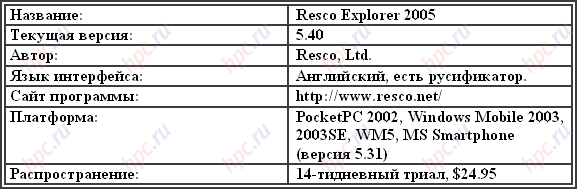
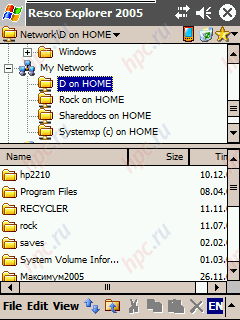
Our first hero - one of the most popular products in its class - Resco Explorer 2005.
Monster. Titanium. Colossus. Universal Soldier. About these definitions begin to swarm in my head at the mere sight of the possibility of superfoods Slovak programmers. Even a brief acquaintance with this program is enough to forget the built-in explorer, because the latter looks a pale shadow of Resco Explorer.
Kratenko the main features of the manager: - Basket. Yes, you read that right. That basket, like the one on the desktop. Of course, it will only print the files in the event that it is removed through the Resco Explorer, but at least something (oh, how many times I regretted the absence of the basket on your PDA!).
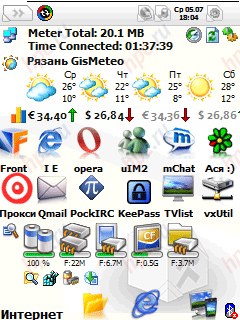
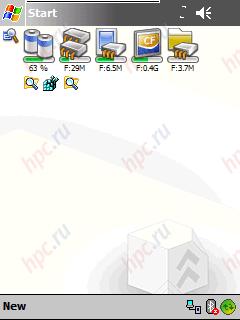
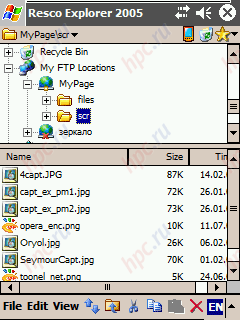
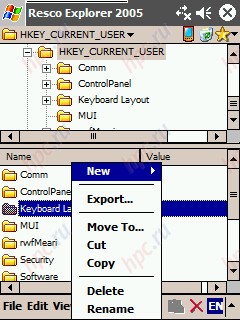
- Plug-ins. At the moment there are three plug-in for the manager, namely: the plugin to work with the system registry, plugin to work with FTP and the plugin on your Today screen with the ability to display information about battery life, data storage (Storage / Program) and maps expansion, as well as shortcuts for quick launch of programs and documents.
- Ability to send files via Bluetooth, e-mail, infrared port directly from the file manager.
- Built in file viewer types (text and graphic).
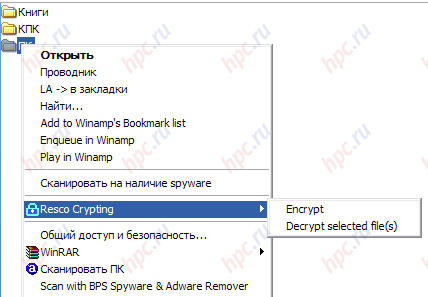
- Built-in encryption / decryption of files.
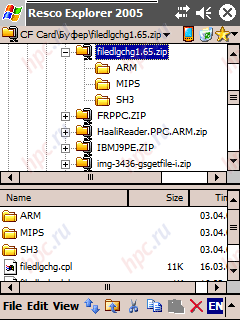
- Great job with archives ZIP, including launching files directly from the archive.
- Support Drag'n'Drop
- Ability to use the "Open with ..." and "always open with ..." (change association of file types).
- Many settings types of display lists of files.
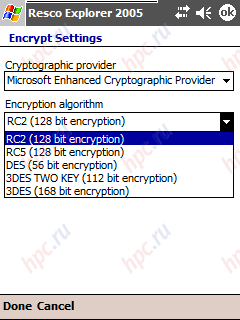
Now some of the most interesting features of the program Tell detail. File encryption. You can choose from five there is in the program algorithms.
Moreover, if you put Resco Explorer 2005 is not out. Cab-file and from a PC via ActiveSync, then on your desktop is set module to encrypt / decrypt files, similar modules in Resco Explorer. Thus, an encrypted file on your PDA, you can decode on the PC and vice versa.
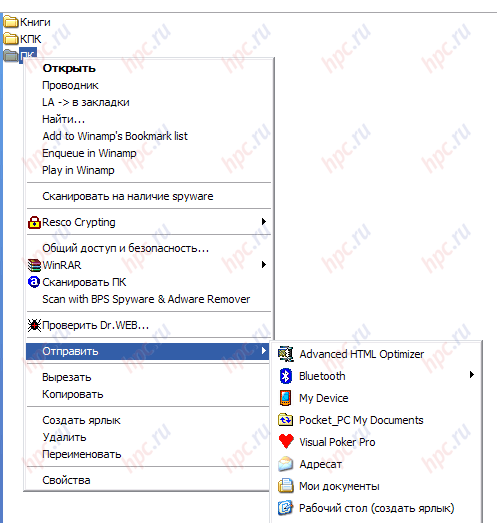
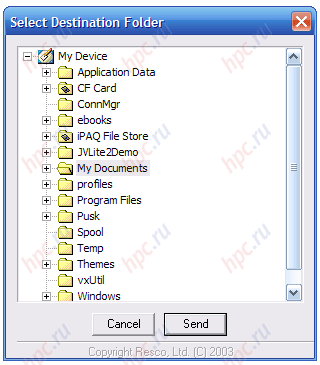
Module «Send to ...» for the PC. Also, when you install Resco Explorer 2005 from the exe-file on the PC installs the module, which adds sub «My Device» in the menu item a file or folder "Send".
Thanks to him, you can send selected files or folders directly into any place on your PDA.
Sending a file via Bluetooth. Very few programs can boast of such a function, and that very few people that it really works, and, regardless of the manufacturer of Bluetooth-stack. As you know, on a PDA running Windows Mobile can be installed from the stacks or Microsoft, or Widcomm, and many programs transfer a file by BT is working, or with one or another type of stack. Plug-in for Today screen skinnable (you can download them on the site Resco) and work without the stylus, select the desired label can a joystick and running - click Action.
Send this plug-in shortcut to the file can be directly from the context menu of the file by selecting the «Send To» - «Today screen plugin». In addition, Resco Explorer browser works good local network and FTP-browser.
The only thing that caught my eye - the incorrect display of file names, called Cyrillic, in remote FTP-server. Of course, the call files intended for public download, is usually preferred in Latin, and the problem will arise if, it is extremely rare, but still. Especially warm words deserves Plugin Resco Registry. An extremely handy tool for fans of "dig" in the registry. Supports the import and export of selected branches of the registry, and that these operations produce a long well-known format. Reg, widespread and on a PC running Windows. Thus, it becomes possible to create and edit the registry branches to "full" keyboard and "full" screen (ie a PC) and then import these branches on the PDA.
In conclusion, the review would like to add that Resco Explorer supports all current at the moment the screen resolution for Windows Mobile, namely, QVGA (240x320), VGA (480x640) and square screens modern communicators with a resolution of 240x240.
Output
With many unique features, great implementation, and frequent updates, the program long and firmly settled on the WM-devices for many users. Excellent product. I recommend to everyone - beginners and "advanced" users.
Pros: - Many unique features, like send the file via Bluetooth or via e-mail directly from the file manager
- Plugin on the Today screen
- Superbly organized effort to register
- Support for all screen resolutions
Cons: - "Shopping cart" can not be transferred from memory to memory card or faylstor
- With a large number of items in context menu «Open with» context menu starts to slow down your.
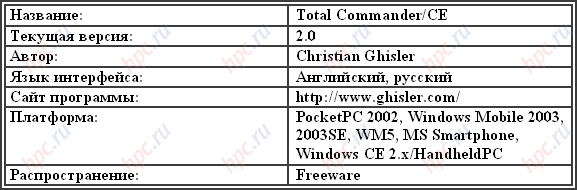
Total Commander
Total Commander - a very, very good file manager. Initially is in English, but in our catalog can be downloaded crack for this program.
Main features of Total Commander: - Standard features file manager, that is, copying, moving, renaming, deleting files and folders, create folders.
- Work with ZIP-archives.
- Viewing file properties, change the attributes.
- Built-in text editor like Notepad, is very useful when editing various configuration files, since it in principle anyway what file to open it.The fact that the expansion, the association of this enlargement to other applications and other details of this editor is not paying attention.
- Selecting groups of files
- Ability to send / adoption file for the IR port directly in the file manager.
- Different ways of presenting files and folders (full / short / large icons).
And the "dessert" the most interesting features of this program: - Single or dvuhokonny display mode
- FTP
- LAN
- Registry Tools
- Customizable toolbar.
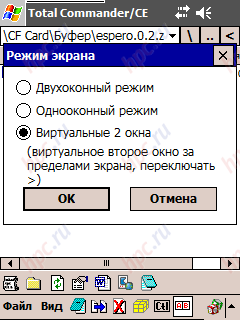
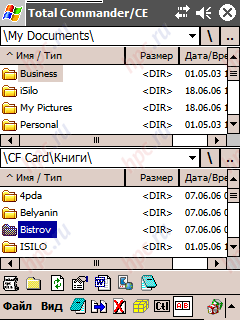
These "goodies" and make Total Commander is very interesting product, so that details about each of them. Single or dvuhokonny display mode. In Total Commander concept of "dvuhokonny" has a somewhat different meaning than, for example, in the above Resco Explorer. There windows are clearly separated by function: in one window - a folder tree, and another - subfolders and files of the currently selected folder. Here the windows are made in the style of the unforgettable Norton Commander, Total Commander for PC and other two-pane file manager for your desktop computer.
Selecting dvuhokonny mode, we get two mutually independent windows, each of which can be moved between entirely different folders.
Admittedly, it is extremely convenient. For example, you need to collect files into one folder on the specific criteria of several other folders. In one window, go to the folder where you want to add the files or entire folders, and others - are traveling in search of the files. Copy or move by dragging and dropping files or folders from one window to another. Comfortable? Not the word! Mode of two virtual windows "works just as well, but with one modification: each window opens full screen, and switching between windows is done by pressing buttons with symbols" in the upper right corner of the screen.
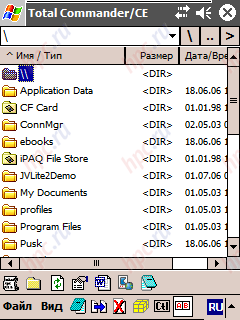
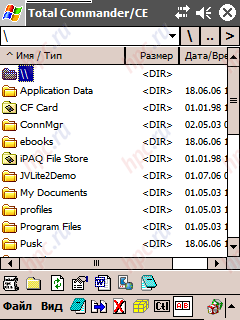
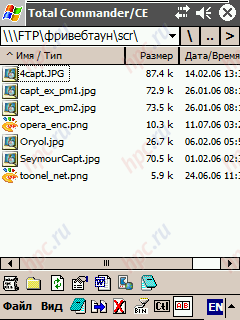
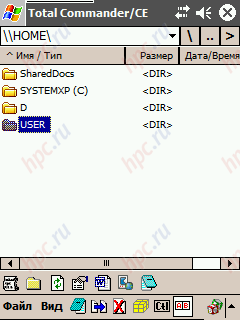
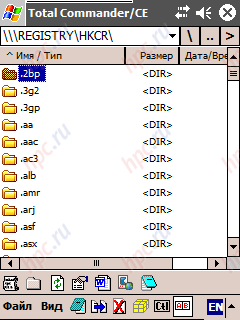
Work with FTP, LAN, and the registry. Sometimes beginners Total Commander can not find these modules. Hint: go to the highest level of the file system of your PDA (this can be done by pressing the button with the symbol "\" the right of the address above) and go to the folder labeled "\ \".
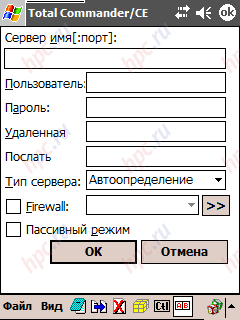
It was there hiding modules for FTP, local network and the registry. Work with FTP and local network also facilitated dvuhokonny interface, and does not pose any difficulty. All spelled out very clearly and understandably. To get started with FTP need to click on the words "New Connection", enter the name of your future compound and fill in the window.
After filling in your FTP folder appears with the name of your Internet connection. "Clicking" on it and clicking "OK", you will find yourself in a few seconds on the specified server configuration.
Similarly configured and working in a local network: When you link to click in the folder «LAN» click "New Server" and enter the name of the computer to which you want to connect. In contrast, Resco Explorer you will not even enter the name of "rassharennoy" drive, after connecting to a remote machine Total Commander immediately displays all the resources available to you.
Working with the registry in Total Commander is made less clear than in the Resco Explorer, due to lack of tree-like system, but for the free program - very good.
And, if you copy or move the registry keys in the file system folder, they are automatically saved in the above format. Reg, which can not fail to please:) If you are copying a file. Reg folder in the registry is the opposite situation - the contents of the file is exported to the registry. And finally, let's talk about another very interesting "trick" the program - on the toolbar. Switched-off button is shaped as letters to the "AB" on the bottom. And think on this particular it end? Of course not. Notice the left icon in the panel (in the form of a scroll). This icon allows you to set up something like "run from another program."
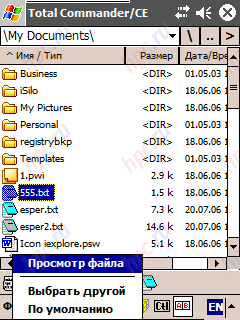 |
The bottom line. Suppose you have associated files. Txt (text) with Pocket Word. But often you have to open these text files in a notepad. Then you can specify the path to your scratch pad to set up icons of "alternative browser", and highlight the file and clicking on the icon, you run the program you want with the parameter "address of the file to open." That is, in our case, the file will open Notepad. Unfortunately, application for an "alternative opening, you can choose only one (rather as we would like to configure a viewer for each file type!). But this is not bad ... Another interesting feature of the toolbar - the opportunity to put there shortcuts to the files. Just drag the file into the panel - and you can run it at any time (of course, for this you have to first open Total Commander).
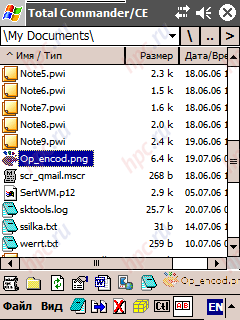 |
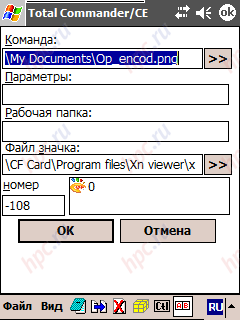
But that's not all. Press and hold the stylus on the file icon in the toolbar and select the popup shortcut menu, click Edit. So you get a window where you can change almost all parameters of the icons.
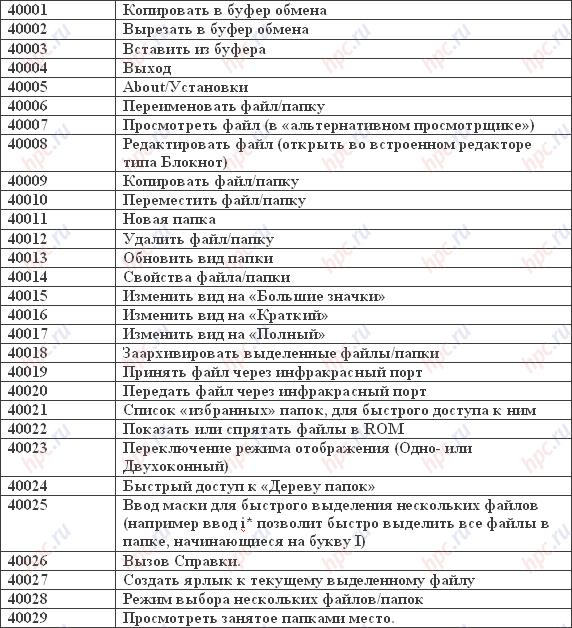
Pay attention to window "command." By default, it set the path to the file, but Total Commander instead of allowing him to prescribe a digital code, and then click on the icon in the toolbar to make Total Commander to execute commands corresponding digital code. The list of codes and their corresponding command, refer to the plate below.
Now pay attention to the following line of code - "Options". With it you can specify a parameter, which opens the current label.
The options are: - % P - the current directory
- % N - the selected file
- % T - a directory from another window
- % M - the selected file in another window.
Question mark as the first character of a string option means that before launching the label with the parameter Total Commander shows the window for confirmation. For example, put a label on the panel program for reading Alreader Light. Set in the parameter string «% p% n», we can open the program currently selected file, and asking «% t% m», will open in the same program a selected file in another window (do not forget that Total Commander - it dvuhokonny file manager).
Output
Excellent file manager with excellent features. Unfortunately, most of the features at first sight are not visible (for example, by default after installing the program enabled single window mode), or a visitor after a deep and thoughtful read the help file, but this product is that good with it "tricky":)
Pros: - Excellent dvuhokonny mode for working with files and folders
- Magnificent toolbar with a wide range of opportunities
- Excellent performance
- Free distribution.
Cons: - difficulty in mastering the program (most of the capabilities or not enabled by default, for example, the same dvuhokonny mode, or require the user to a detailed study of the Help file)
- Less clear than in the Resco Explorer, The mode of working with the registry.
GSFinder +
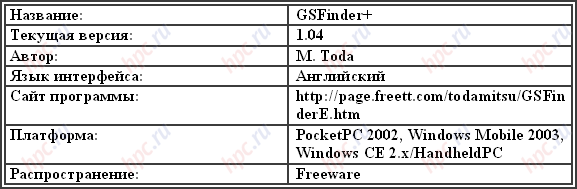
The third product on today in the class file managers - GSFinder +.
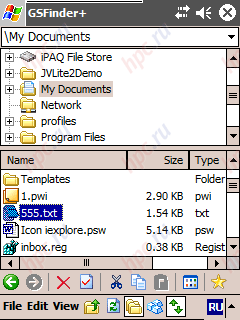
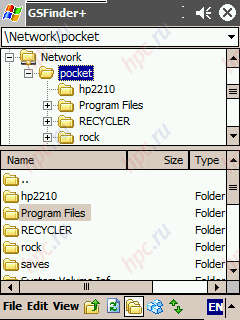
No less interesting than the previous two products, the file manager. Looks very similar to Resco Explorer.
As befits a program, it can copy, move, delete files and more: - Working with archives ZIP and LHA
- Supports Drag'n'Drop
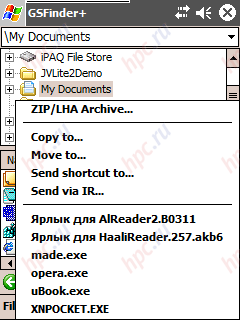
- Has a very original copy function filename or full path. For example, as a result of the operation Copy Path on the selected in the figure above file to the clipboard of your machines will text \ My Documents \ 555.txt, which can be very useful when manually creating a variety of shortcuts, scripts, and other things.
- Excellent running searches in files (including the search for a file contained in the Russian text)
- Ability to adjust the file associations to open their programs
- Ability to work in a local network
- Ability to use an analog operation "Open with ..."
- Different ways of presenting files and folders (big / small icons, details, etc.).
Now, as usual, on these and other most interesting features of the program in detail. Opening files with a program, which has no associated file extension, you can do as much GSFinder'om two ways. Method one. Go to menu View - Options, go to Shell options tab and specify where the path to a folder (by default it is registered - \ Windows \ SendTo \). Now exit the settings and create a folder if you have it does not exist. Then just dump the place shortcuts to various programs (by the way, very convenient to do it directly from the context menu with items Send To - Send shortcut to). Done? Now, again, open the context menu of the file and choose Send To. At the bottom of the drop down menu to see the program through which you can open the file or try to do it. Agree that it is difficult to program for viewing graphics claim format support HTML:).
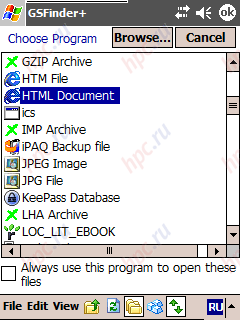
Method Two. There, in the context menu of the file, click Open - Choose Program.
You may select a program already established association, simply find the item you want and click "OK" or by clicking Browse, select the executable file, with which GSFinder + attempts to open the file. If the tick para «Always use this program to open these files», you can establish a permanent association of the selected file type to a particular program. Working in a local network is also made very comfortable. To create a new connection, choose the menu File - Tools - Network Connect and create a new connection (entered in the Remote path the path as \ \ computername \ papka_dostupa, and in line Local name - the name that you want "had called "Your new connection). All you can walk on the "strange" folders, both on its own.
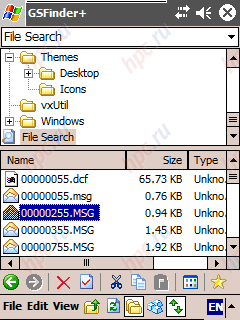
Very quickly, the program works, "Find Files". In this case, the results are not in a separate window, and in the folder File Search. Below you see the search result files on the criterion of "55".
What a pleasant surprise, after conducting a search, you can work with other folders or files, but the results of the last search will not disappear - and will hang in your File Search to exit the program. Well made and Settings "GSFinder +. They can find hidden or not hidden system or immutable files, use your own icons or system, change the font, specify the type of file in which to wrap up the program by default »(ZIP or LHA), specify a folder to unpack the archive and more another.
Output
GSFinder + - super fast file manager that provides the user a very powerful means of managing the opening of files in various programs.
Pros: - The speed of the
- Ability to work with LHA archives
- Well-organized display of search results
- A great opportunity to open files "contingency" programs
- Free distribution
Cons: - There is no way to edit the registry
- The program is rarely updated (current version - more than a year).
Results
If you need the 'Trash' plug-in on screen Today, file transfer via Bluetooth, so you to mnogostanochniku - Resco Explorer'u. In addition, the file manager is useful lovers "dig" in the registry, thanks to plug-Resco Registry. However, if all of the above programs of this kind you do not really need, it is possible to manage the installation of Total Commander and GSFinder +. The first file manager provides you a convenient way to work with files, thanks to corporate dvuhokonny regime, as well as access to the registry, FTP and local network. Second - great way to start the file "custom" applications (associated, for example. Txt extension is possible with only one application, with Notepad, but then want to open a file with that extension in Pocket Word or any reader?). Also on the side of the last two programs of high speed and the fact that both can be fully installed on a memory card (only Total Commander puts its help file in the folder \ Windows). Well, free distribution, of course:) In any case, to live with one of these file managers will be much easier and more fun than without it. This I promise you. The authors, translation: